




















How to Download Telegram Videos on PC or Mac with Aye
Quick answer: To download a video from Telegram Web with Aye, open Telegram Web in Aye, open the video you want, click Save Current Media, and wait for the item to show Completed in Aye's Downloads panel. Use this only for media your Telegram account can already access and that you have the right to save.
Disclosure: I build Aye. This guide explains Aye's current Telegram Web workflow and is not an independent product review.
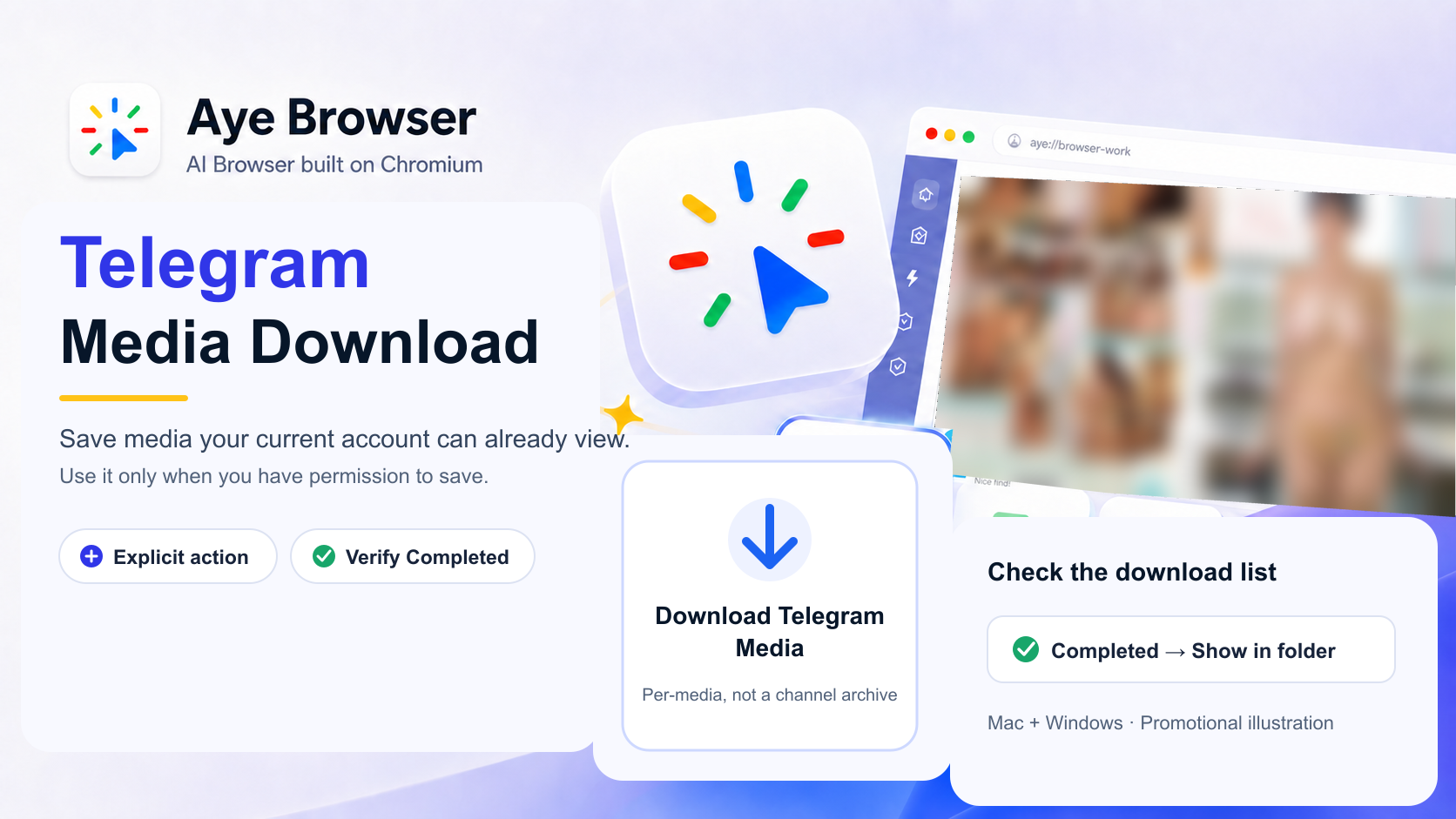
Promotional illustration; the media preview retains the original blur treatment and the labels summarize the verified desktop workflow.
When people search for a Telegram video downloader, they are often trying to solve a very specific desktop problem: the video plays in Telegram Web, but saving the right file is confusing, the download button is missing, or the finished file is hard to find.
If Telegram already gives you a working download button, use it. Aye is useful when you want a media-level save control inside the browser and a clear place to check whether the transfer actually finished. Each download starts from an item the user explicitly selects. Aye does not automatically scan a channel or act as a bulk archiver.
Can I Download Videos from Telegram Web?
Yes. Telegram Web can expose its own download control for many videos. Aye adds another option for supported media: a small round save control on the video or image you have opened in the signed-in Telegram Web page.
This approach does not require a public Telegram link, a downloader bot, or a separate browser extension. The target is the media visible in your current tab, which matters because one Telegram Web page can contain many messages while the address bar barely changes.
Aye does not log you in, join a channel, or start downloading a conversation automatically. You remain in control of the Telegram session and the exact item you choose.
How to Download Telegram Videos on PC or Mac with Aye
The workflow is the same in Aye for Windows and macOS.
1. Open Telegram Media in Aye
Open a new tab in Aye and choose Telegram Media. You can also open Skills and run Download Telegram Media. This opens Telegram Web or switches to an existing Telegram Web tab; running the Skill does not start a download by itself.
2. Sign in and open the video
Sign in to Telegram yourself and complete any verification or account-security checks. Never give a Telegram login code to a downloader website or bot.
Find the video you want to save, then open it in Telegram's foreground media viewer. This is especially helpful when a post contains an album or several thumbnails: one large, opened video gives Aye a clearer target than a busy message grid.
3. Click Save Current Media
Wait for Aye's round download control to appear near the media. In the English interface, its hover label is Save Current Media.
Click once. A spinner means Aye is preparing the media request. If preparation is taking too long, clicking the spinner again cancels that attempt so you can reopen the video and retry.
4. Verify the download in Aye
When the transfer starts, the media control briefly changes to a checkmark and Aye opens the Downloads panel. That checkmark means the download started; it does not mean the entire file is already on disk.
Watch the item in Downloads until its status changes from Downloading to Completed. Then choose Show in folder and open the local file. For an important video, check a moment near the beginning, middle, and end rather than assuming that a file with a video extension is complete.

Workflow illustration; the exact Telegram Web layout may change.
How Can I Download a Video from a Private Telegram Channel?
A private channel is accessible only to approved members. Aye can work with supported media in a private channel only when the Telegram account currently signed in can already open that channel and view the video.
It does not bypass sign-in, invitations, channel membership, DRM, paywalls, or other access controls. It also does not turn a private Telegram video into a public link. You are responsible for having permission to save the file. Saving it locally does not give you permission to republish, distribute, or use it commercially.
Private channel vs. restricted saving: what is the difference?
"Private" describes who can enter a channel. "Restrict Saving Content" is a separate Telegram setting that can limit forwarding, screenshots, and saving media. Telegram describes that setting as a protection for creators and member-only content.
Do not treat a missing download button as automatic permission to work around a channel owner's rules. If content is protected, get authorization from the owner or rights holder before keeping a copy. This guide is about saving media you are authorized to access and retain, not defeating technical or legal restrictions.
Why Can't I Download Files on Telegram Web?
The same symptom can have several causes: the video may not be fully loaded, Telegram may not have exposed a usable media source yet, the page may have changed, or the transfer may have been interrupted. Start with the visible evidence instead of retrying blindly.
| What you see | What it can mean | What to try | |---|---|---| | No Aye save control | The item is still a thumbnail, the viewer is not open, or the page is still loading | Open the video in the foreground viewer and wait a moment | | No video that can be saved was found on the current page yet. | Telegram has not exposed a supported video source | Open or play the video, then try once more | | This video cannot be saved yet. or Could not start saving the current video. | The current source or page state is not supported | Reopen the media and retry once; stop if the same message returns | | The item shows Interrupted | The tab, network, or page context was lost during transfer | Keep Telegram Web open, reopen the same video, then use Retry | | Downloading does not change for a long time | The source stopped responding or the session changed | Check the connection; cancel the unfinished item rather than treating it as complete |
Also check the ordinary causes of PC download failures: an unstable connection, insufficient disk space, a closed Telegram tab, or a save dialog waiting behind another window. Availability can vary with the media, the page state, and future Telegram Web changes.
Where Do Downloaded Telegram Videos Go on PC or Mac?
Aye shows the file in its Downloads panel. Once the status is Completed, choose Show in folder to reveal its actual location in Finder on Mac or File Explorer on Windows.
If your download settings ask where to save each file, the video goes to the folder you choose in that dialog. Because this setting can differ from one computer to another, the Downloads panel is more reliable than guessing a fixed folder path.
Do I Need a Telegram Video Downloader by Link or a Bot?
Not for this Aye workflow. Aye works from the media already open in your signed-in Telegram Web tab, so you do not need to turn a private item into a public link or forward it to another account.
| Method | How it works | Main trade-off | |---|---|---| | Telegram's built-in control | Download directly when Telegram shows the option | Simplest choice, but the control may not be available for every item or page state | | Online downloader by link | Paste a shareable Telegram URL into a website | Usually depends on a public or usable link; the URL is shared with that service | | Downloader bot | Forward a message or file to a bot | The content is shared with another Telegram account or service | | Browser extension | Install an add-on that reads Telegram Web | Requires a separate extension and whatever browser permissions it requests | | Aye | Save supported visible media inside the current Telegram Web session | Requires the Aye desktop browser; each item needs an explicit save action |
For private or sensitive media, think carefully before forwarding it to a bot or pasting its link into an unknown site. A tool calling itself "free" does not tell you how it handles URLs, files, account data, or logs.
Is It Safe to Use a Telegram Video Downloader?
Safety depends on both the software and how you use it. A few practical rules matter more than a generic "safe" badge:
- Download Aye from the official Aye product page, the Mac App Store, or the Microsoft Store.
- Sign in only on Telegram's real web app, and never share your password or verification code with a downloader.
- Do not upload private videos or private links to third-party services unless you understand and accept how they handle that data.
- Save only content you own or have permission to retain, and respect privacy, copyright, channel rules, and Telegram's terms.
- Confirm the file in Aye's Downloads panel instead of trusting a visual checkmark alone.
Aye is an independent browser and is not affiliated with or endorsed by Telegram.
Can I Download Multiple Telegram Videos at Once?
Aye is designed around explicit, visible media selected by the user. It does not automatically scan or batch-download an entire channel, group, or conversation.
If several videos are visible, choose each item explicitly and verify its own completed download. Aye treats these as separate user-initiated saves, not an automatic batch archive.
Can Aye Save Telegram Images Too?
Yes. The current Telegram Web workflow also supports visible or opened images through the same media-level controls. Stickers, emoji, and reaction-style media are intentionally excluded. Support can vary by media type and Telegram Web layout, and Aye does not promise a particular source quality for every item.
Frequently Asked Questions
How can I download Telegram videos for free?
First use Telegram's own download control if it is available. Aye is currently free for Mac and Windows and offers Save Current Media for supported Telegram Web videos. Current availability is shown on the official Aye product page.
Does Aye work on iPhone or Android?
This workflow is documented for Aye's Mac and Windows desktop versions. It does not imply support for iPhone, iPad, Android, or APK installation.
Does Aye download every Telegram video or guarantee original quality?
No. Aye supports selected visible or opened media when the current page exposes a compatible source. It does not guarantee every media type, album layout, future Telegram Web version, file format, or original-quality output.
Download a Telegram Web Video with Aye
Ready to try it? Download Aye for Mac or Windows, open Telegram Media, and use Save Current Media on a video your Telegram account can already view.
Then wait for the result that matters: Completed in Downloads and a local file you can open.
Sources and review notes
- Telegram: Protected Content in Groups and Channels
- Telegram Content Licensing Terms
- Official Aye product page
Last fact-checked: August 20, 2026. Product behavior, Telegram Web, and pricing can change.